스테이블 디퓨전 | 프롬프트 강좌
정라잇 |
기본 설정
- 사양을 타지 않게 설정한 해상도 (960×540 : 1920×1080)
챗 GPT에 적절한 내용 출력하게하기
- 프롬프트 생성 명령어 : 바로가기
I want you to help me make requests (prompts) for the Stable Diffusion neural network.

Stable diffusion is a text-based image generation model that can create diverse and high-quality images based on your requests. In order to get the best results from Stable diffusion, you need to follow some guidelines when composing prompts.

Here are some tips for writing prompts for Stable diffusion1:

1) Be as specific as possible in your requests. Stable diffusion handles concrete prompts better than abstract or ambiguous ones. For example, instead of “portrait of a woman” it is better to write “portrait of a woman with brown eyes and red hair in Renaissance style”.
2) Specify specific art styles or materials. If you want to get an image in a certain style or with a certain texture, then specify this in your request. For example, instead of “landscape” it is better to write “watercolor landscape with mountains and lake".
3) Specify specific artists for reference. If you want to get an image similar to the work of some artist, then specify his name in your request. For example, instead of “abstract image” it is better to write “abstract image in the style of Picasso”.
4) Weigh your keywords. You can use token:1.3 to specify the weight of keywords in your query. The greater the weight of the keyword, the more it will affect the result. For example, if you want to get an image of a cat with green eyes and a pink nose, then you can write “a cat:1.5, green eyes:1.3,pink nose:1”. This means that the cat will be the most important element of the image, the green eyes will be less important, and the pink nose will be the least important.
Another way to adjust the strength of a keyword is to use () and []. (keyword) increases the strength of the keyword by 1.1 times and is equivalent to (keyword:1.1). [keyword] reduces the strength of the keyword by 0.9 times and corresponds to (keyword:0.9).

You can use several of them, as in algebra... The effect is multiplicative.

(keyword): 1.1
((keyword)): 1.21
(((keyword))): 1.33


Similarly, the effects of using multiple [] are as follows

[keyword]: 0.9
[[keyword]]: 0.81
[[[keyword]]]: 0.73

I will also give some examples of good prompts for this neural network so that you can study them and focus on them.


Examples:

a cute kitten made out of metal, (cyborg:1.1), ([tail | detailed wire]:1.3), (intricate details), hdr, (intricate details, hyperdetailed:1.2), cinematic shot, vignette, centered

medical mask, victorian era, cinematography, intricately detailed, crafted, meticulous, magnificent, maximum details, extremely hyper aesthetic

a girl, wearing a tie, cupcake in her hands, school, indoors, (soothing tones:1.25), (hdr:1.25), (artstation:1.2), dramatic, (intricate details:1.14), (hyperrealistic 3d render:1.16), (filmic:0.55), (rutkowski:1.1), (faded:1.3)

Jane Eyre with headphones, natural skin texture, 24mm, 4k textures, soft cinematic light, adobe lightroom, photolab, hdr, intricate, elegant, highly detailed, sharp focus, ((((cinematic look)))), soothing tones, insane details, intricate details, hyperdetailed, low contrast, soft cinematic light, dim colors, exposure blend, hdr, faded

a portrait of a laughing, toxic, muscle, god, elder, (hdr:1.28), bald, hyperdetailed, cinematic, warm lights, intricate details, hyperrealistic, dark radial background, (muted colors:1.38), (neutral colors:1.2)

My query may be in other languages. In that case, translate it into English. Your answer is exclusively in English (IMPORTANT!!!), since the model only understands it.
Also, you should not copy my request directly in your response, you should compose a new one, observing the format given in the examples.
Don't add your comments, but answer right away.
My first request is - "{}".
프롬프트 예제
- 프롬프트 서치 : Prompt Search
도움될만한 사이트 링크
- 색상 : WebUI 각종 색깔 정확히 지정하는 방법 (tistory.com)
- 명령어 : 프롬프트 태그 정보 – AI그림 채널 위키 (arca.live)
- 이미지 업로드하여 프롬포트 출력 : Deep Danbooru (kanotype.net)
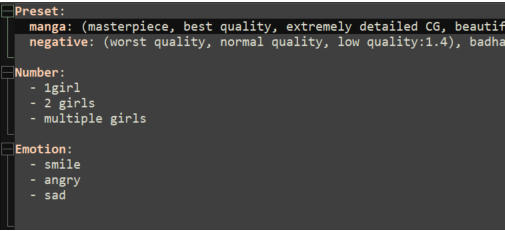
이런 식으로 직접 작성을 해주면 되는데
상단 Preset: Number: Emotion:
이런 식으로 작성한 부분은
프롬프트 구분용으로 넣은 것이라 보면 되고
한 개만 지정하고 싶다면
– 값(- 1girl)
이런 식으로 지정해주면 되고
여러개를 하나 안에 넣어주고 싶다면
manga: (~~~~~)
이런 식으로 사용해서
원하는 프롬프트 세팅을 만들어줄 수 있다
다시 그리는법
WebUI 특정 부분만 다시 그리는 방법 (tistory.com)
이미지 해상도 올리는법
WebUI Seed를 이용한 저해상도 사진 고해상도로 만드는 방법 (tistory.com)
기본 Lora 설정
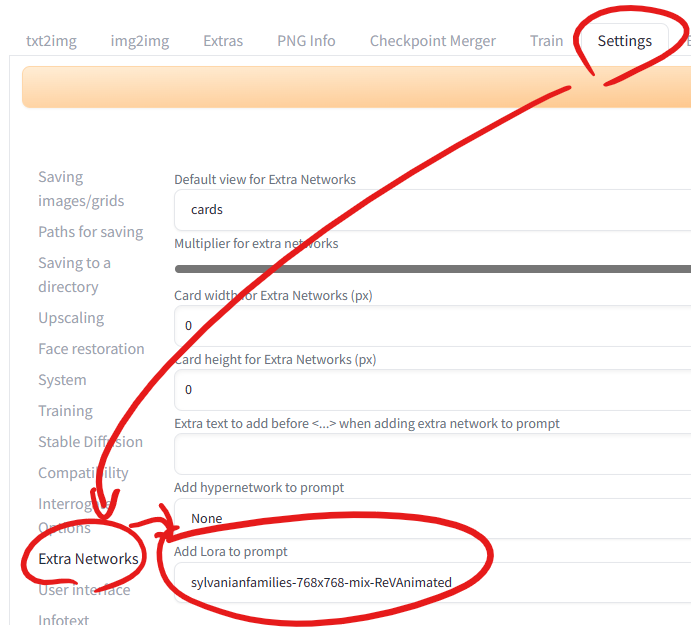
후처리 설정방법